
Reports That Look Like Your Company, Not Ours
No two property management companies operate exactly the same way. Choose your report cover, your logo and your colors, right through to the screen your residents see when they join the call.
See the Customization Options
Aaron Cooper walks through the report covers, the branding and what your residents see, in under two minutes.

Read the transcript
Why we built customization in
Hi, I’m Aaron Cooper with Resident Inspect. One thing we’ve learned from working with property management companies across the country is that no two companies operate exactly the same way. That’s why with our software, we developed it to allow us to introduce a lot more customizations and personalizations than what you are probably accustomed to. Our goal isn’t to make every report look like a Resident Inspect report. It’s to give you the flexibility to choose what works best for your company.
What you can change
From report covers and company colors to the branding your residents see during their video inspections, we’ve built customization directly into our platform. So in this video, I’m going to show you what I mean. Let’s take a look.
Report covers
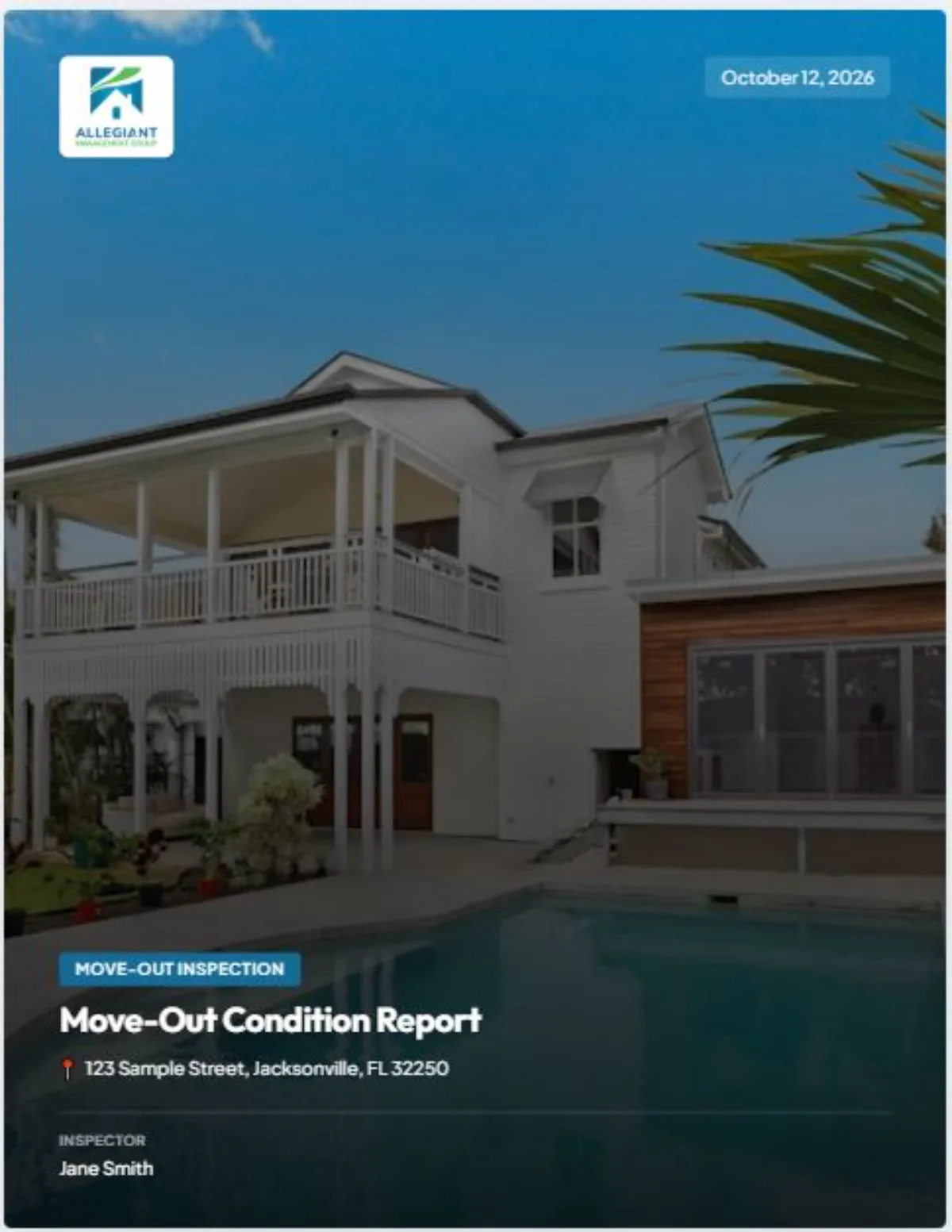
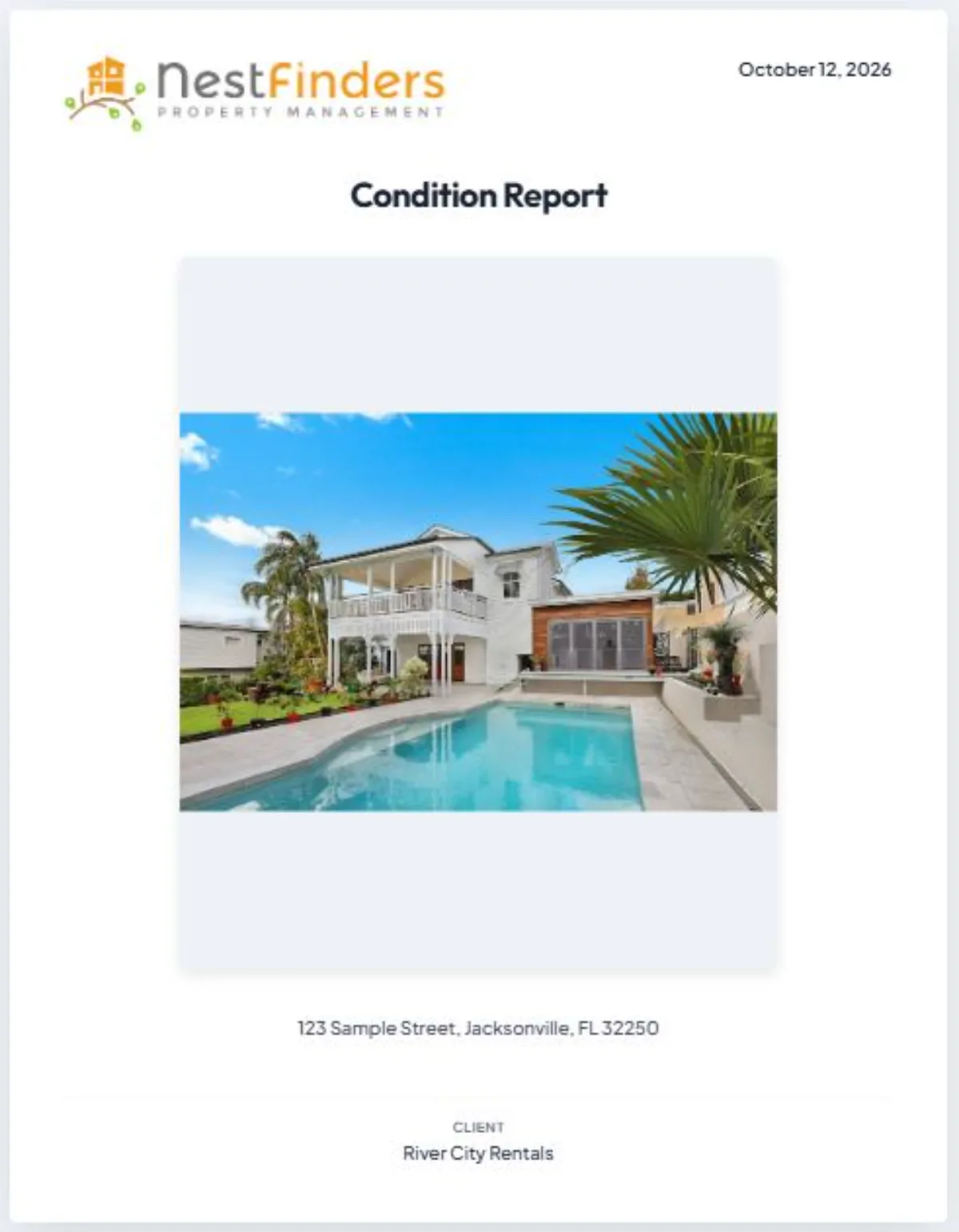
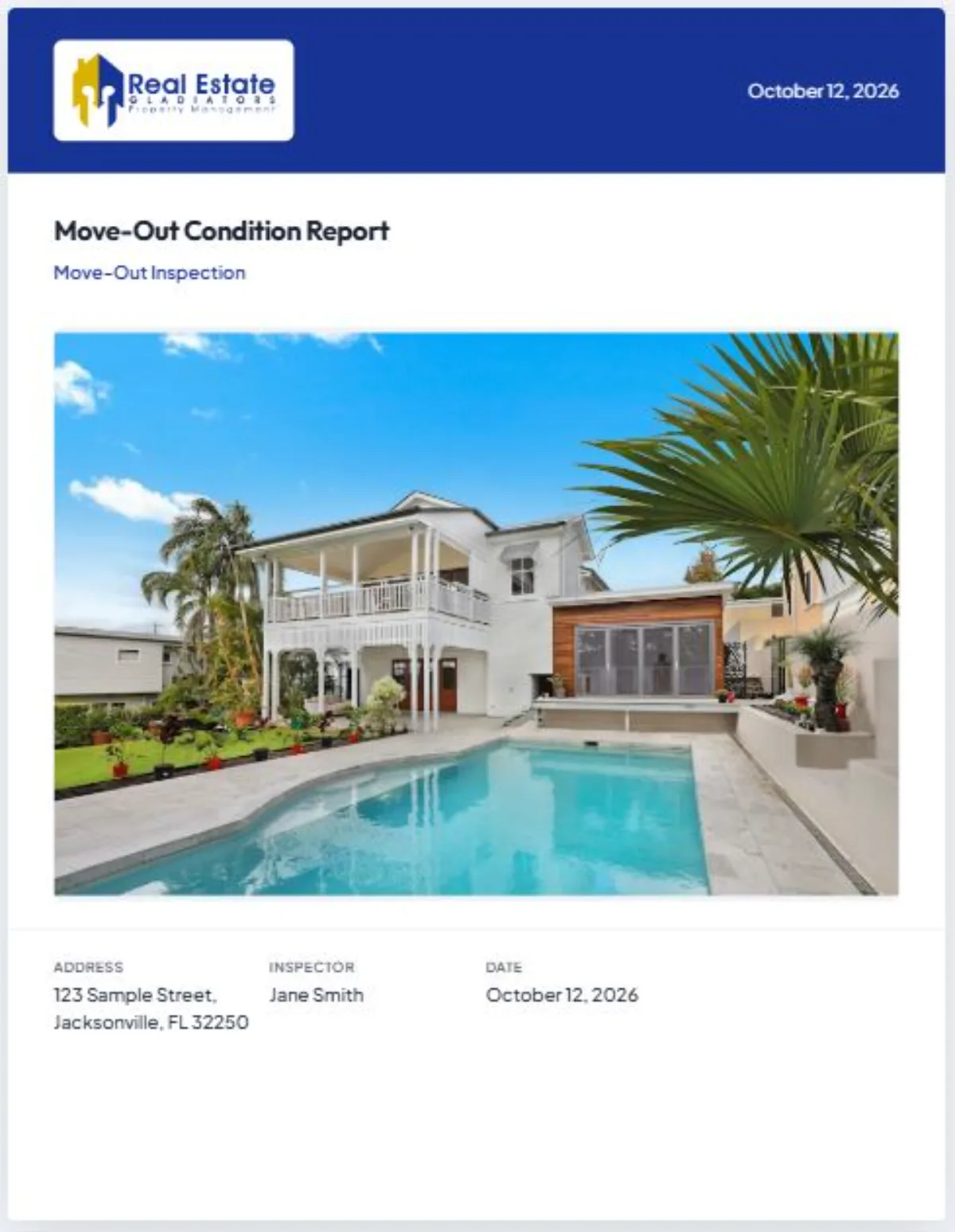
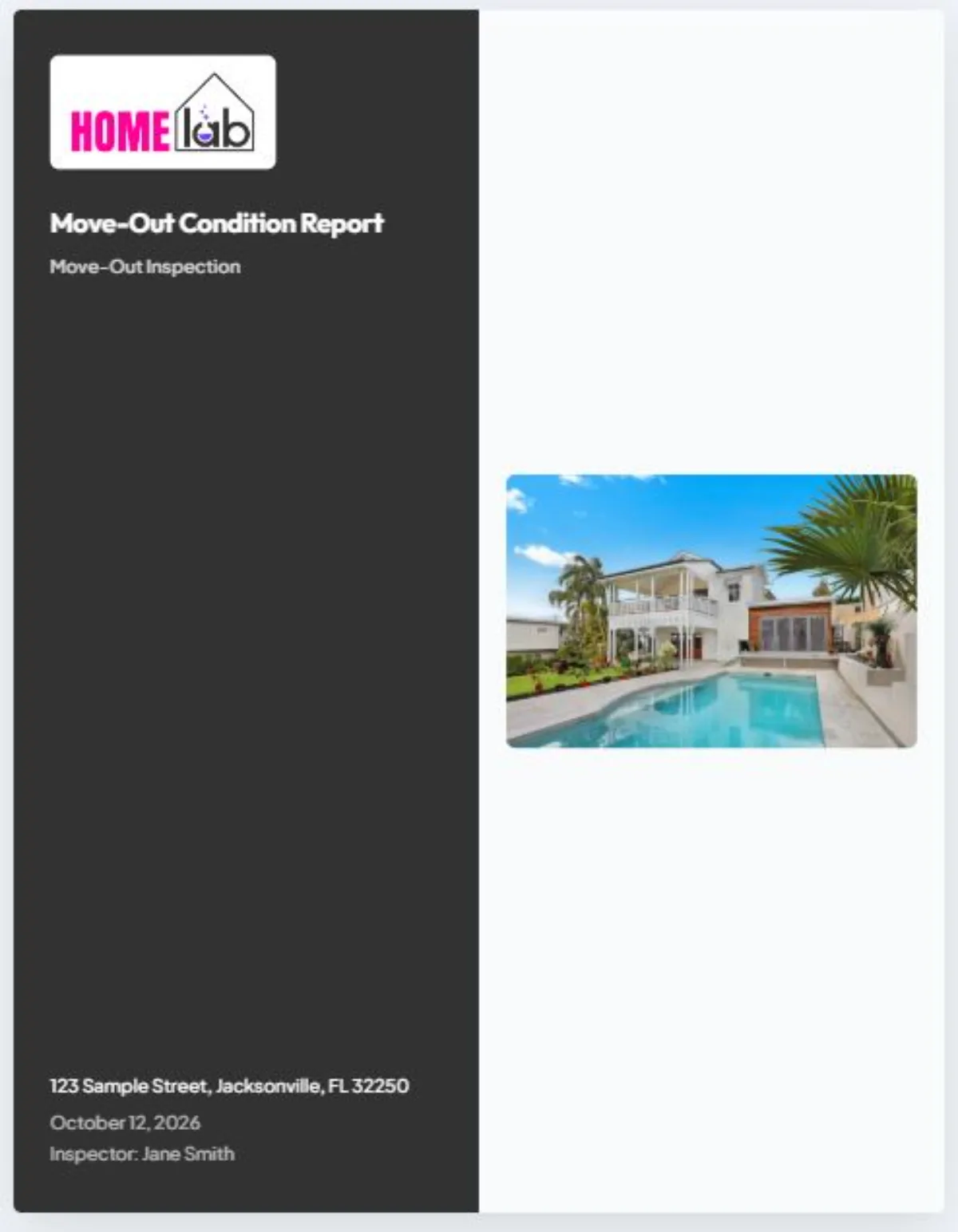
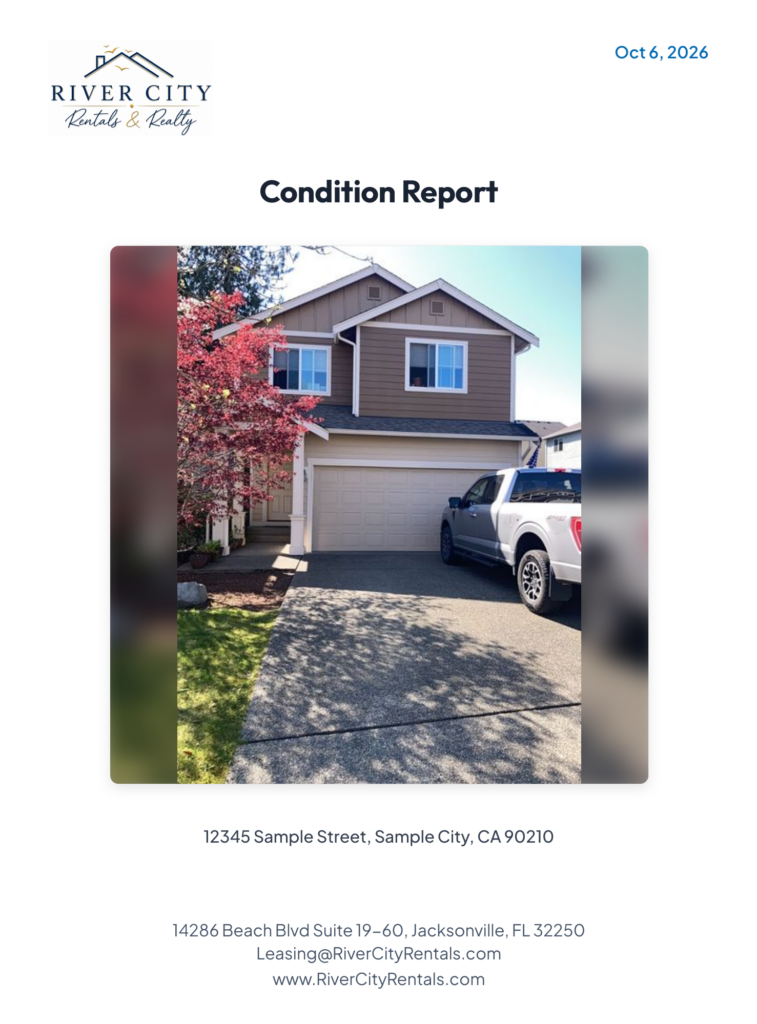
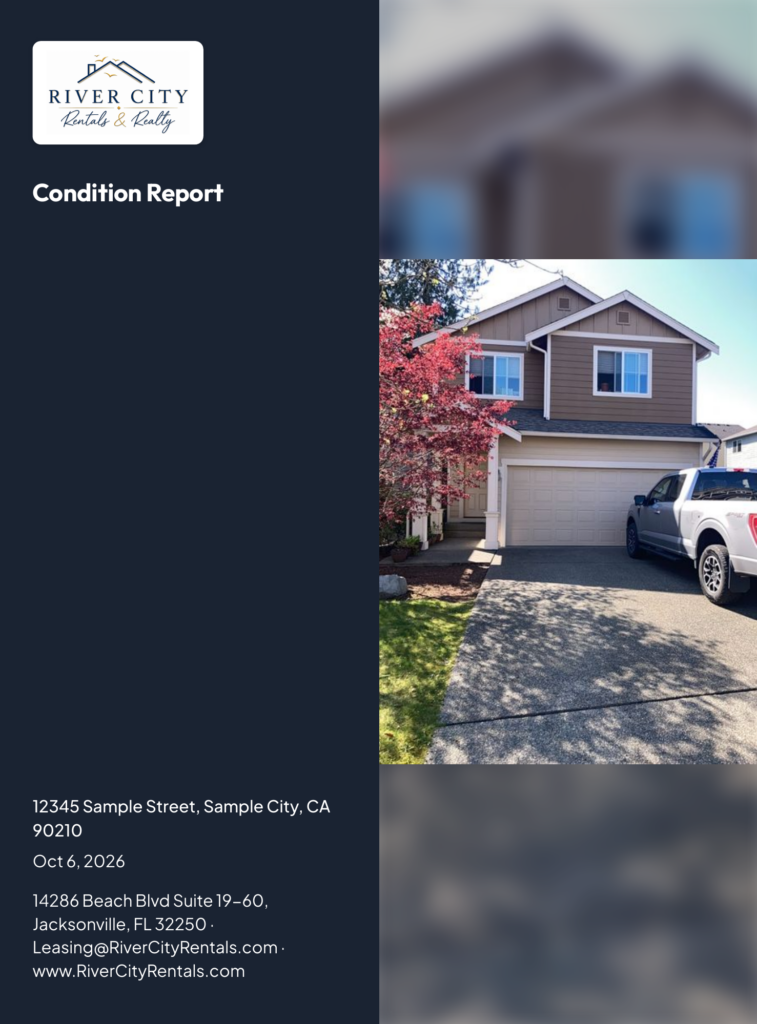
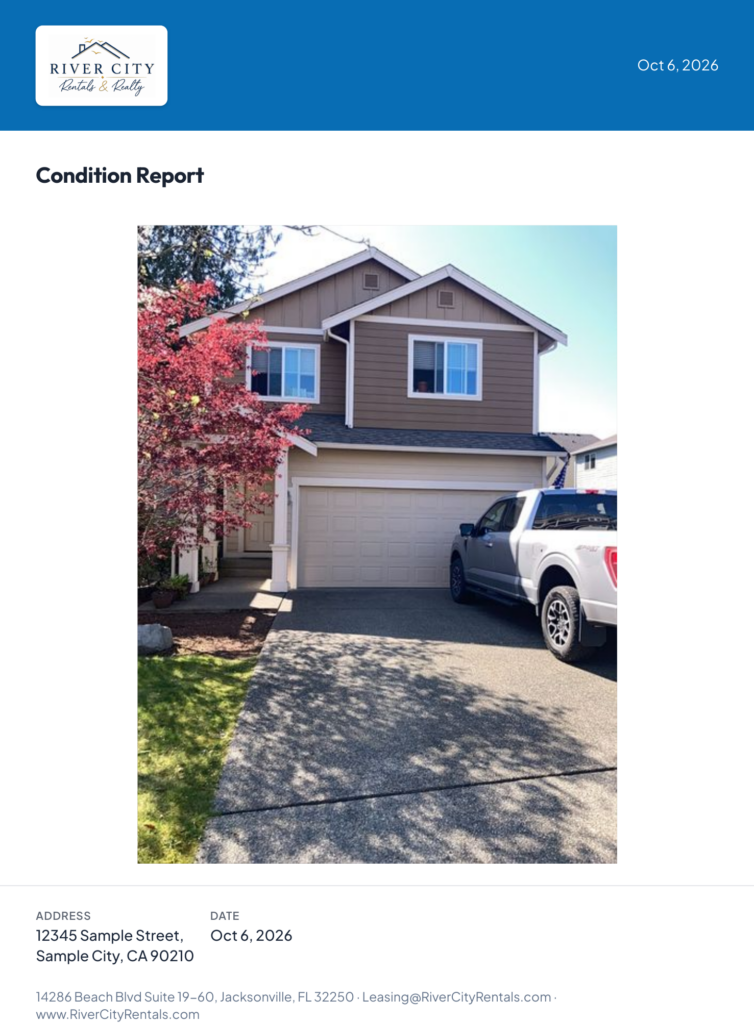
Let’s start with our report covers. Here are the seven different templates we currently have available. These reports are all showing the same company. Just by changing the template cover provides a different look and feel even to the same company. There is no Resident Inspect report. Match the template to your brand.
Your logo and colors
Of course, your custom logo is added to our reports as well as your primary and secondary company colors. Not only do we use these throughout our reports, but we also have the ability to use your brand for our join call and end call screens.
What your residents see
Residents can see your company’s logo and colors right on their join call screen, creating a familiar branded welcome before the inspection begins. There’s no app to download or log in to remember. Just one click to connect with our team. Custom branding is an optional add-on and you can also use our standard Resident Inspect branding.
Why it matters
As a former property manager, I know the reports you send to owners are a reflection of your company. That’s why we’ve put so much thought into giving you options from report covers and layouts to your branding on the resident join call screen. Our goal is to make inspections easier for your team and give you reports you feel proud to share.
Four Things You Can Make Your Own
Customization is built into the platform rather than bolted on, so the report your owners open looks like it came from you.
Seven report cover templates
Pick the cover that suits your brand. Changing the template gives the same report a whole new look.
Your logo on every report
What lands in an owner’s inbox carries your name, not ours.
Your primary and secondary colors
Both brand colors run through the whole report, not just a logo in the corner.
Branded join and end call screens
Residents see your logo and colors when they join and leave the video call.
See What Your Reports Could Look Like
Every cover below is a real Resident Inspect report layout. Each one carries the property manager’s own logo and colors, with no Resident Inspect branding on the page.
Take a Tour of a Resident Inspect Report
Aaron Cooper shows how reports reach your inbox, how red and yellow flags call out important findings, and how to find any room or photo in a couple of clicks.

Read the transcript
What this video covers
Hi, I’m Aaron Cooper with Resident Inspect. In this video, I’ll walk you through our inspection reports, or condition assessments as some companies call them. I’ll show you how you receive your reports, how we bring important findings to your attention, and what you’ll find inside. We’ll also explore the features that make it easy to navigate the report and quickly find the information you need. That aside, let me show you the email you get as soon as our report is completed and published.
How reports arrive
Completed reports can be emailed to one or multiple emails. This is the standard email that you would receive. This is an example of a normal report with no major findings.
Yellow and red flags
To notify you of more significant issues, we use what we call flags. A yellow flag email replaces the standard email and changes the messaging to alert your team of an issue that needs to be reviewed. We include a brief description of what we are calling out so you know immediately what you’re dealing with. This is a red flag email. The subject line has red flags and helps you see there is something that needs your attention right away. The view inspection report button on all the emails takes you directly to the report.
No portal to log into
So now you see how you get your reports and the way we let your team know of a major issue. We know you and your team are busy and we don’t expect you to have to log into a portal to find reports. The reports are accessible from the email with one click. Our flag system and different email types is one of the ways that we ensure important findings are communicated to you quickly and nothing gets missed.
Custom report names and colors
Now, let’s take a look at the report itself. First, thank you to our friends and clients at NestFinders Property Management for letting us use them for our demo. Just for the record, this is not their property. The first thing to point out is the name of the report. This is one of the customizations that is possible. You can call your reports anything you want as well as set up your custom brand colors.
Share, download, or print
The next thing I want to point out is up here in the top right corner. You have the option to copy the link to this report, download the PDF version and print. Not really sure who prints these anymore, but it’s there.
The report summary
As you scroll down to page two, we have a summary of the report. This shows you how many areas need follow-up, which is just items we have marked for you to take a look at. The needs attention number is how many flagged items we have called out. This is both red and yellow flagged items. And of course, how many images are included in the report.
Color-coded table of contents
Okay, so let’s go back to the top of the report and look at the table of contents. This is one of my favorite parts. The table of contents is color-coded so you can see exactly what rooms have areas of concern. I love this feature. The other great thing is that clicking on them takes you right to that area of the report. You don’t have to scroll down 20 pages. There is a drop down for each room which expands to show the room items. Again, all clickable and color-coded.
The photo library
Of course, you can scroll through the images and navigate to where you need to go. So, we see an image here of interest. Let’s take a closer look at it. Simply click on the image and a new window opens up. This is our photo library. Here you can see the image in its original resolution. We can add arrows and circles to help communicate what we are wanting to point out to you. Up in the top right corner, you will notice a download button. You would use this if you ever need the original image. In the photo library, you can navigate to any room and see all the images in the report organized by room. This is very popular with homeowners.
Notes and pets
Let’s take a look at this pet section. While still in the photo library, we can still view the comments. Here you can see we documented that there was an animal living in the property. We try and get images of every pet we see. In this case, their lab mix, Toby. By closing the window, we are right back to the report and the table of contents.
Wrapping up
And that’s a look inside a Resident Inspect report. Our goal is to give your team a clear picture of the property’s condition with important findings easy to find and details easy to review. We’re always refining our reports, so depending on when you’re watching, you may see a few updates or additional features. Thanks for taking the time to watch. If you have questions or would like a sample report to explore for yourself, email me directly. I’d be happy to help.
A Familiar Welcome, Before the Inspection Starts
Residents are far more comfortable joining a call that looks like it came from the company they rent from.
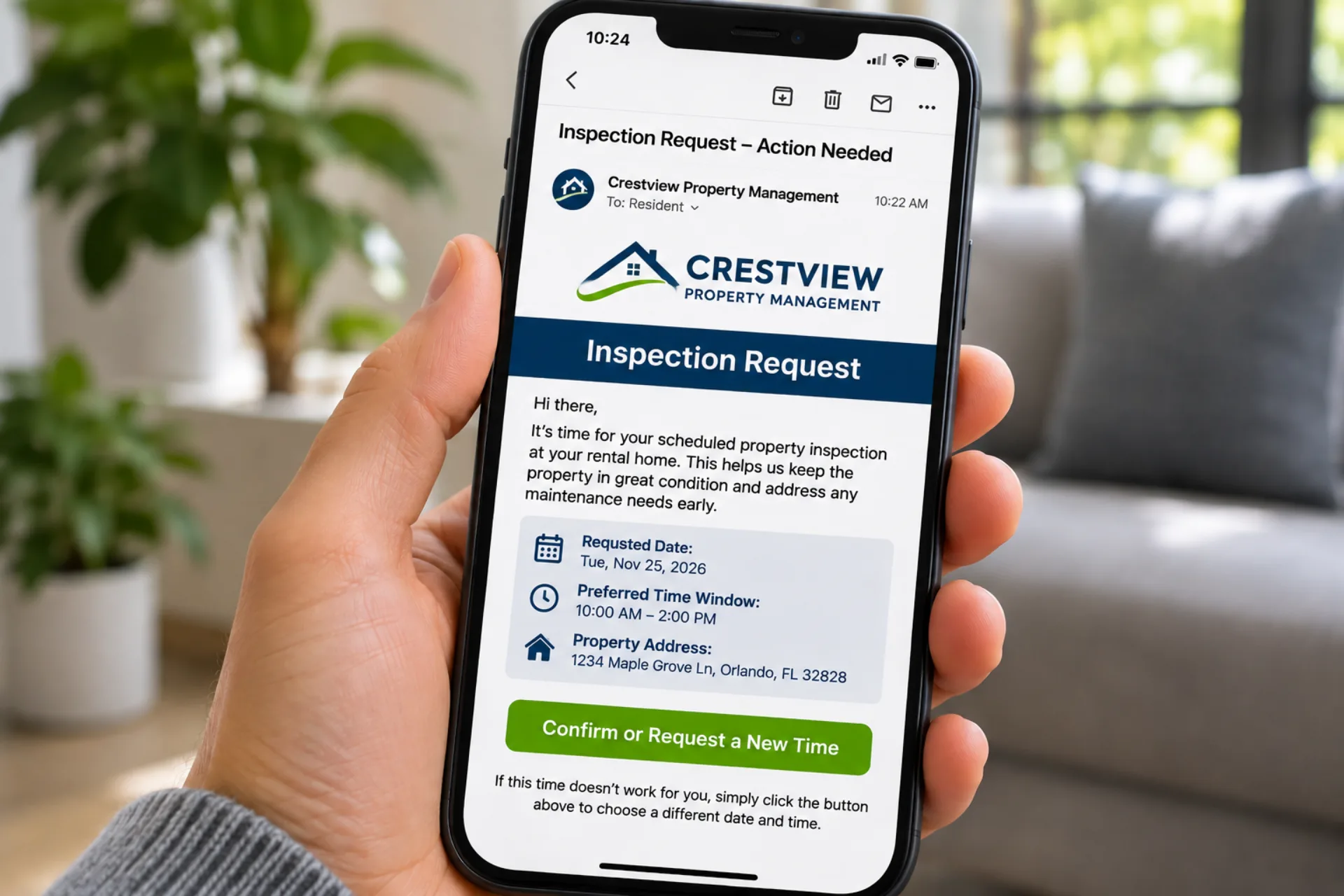
Want to see what residents experience? Visit our resident information page for a full walkthrough of the call and the questions we get asked most.
“As a former property manager, I know the reports you send to owners are a reflection of your company. Our goal is to make inspections easier for your team and give you reports you feel proud to share.”
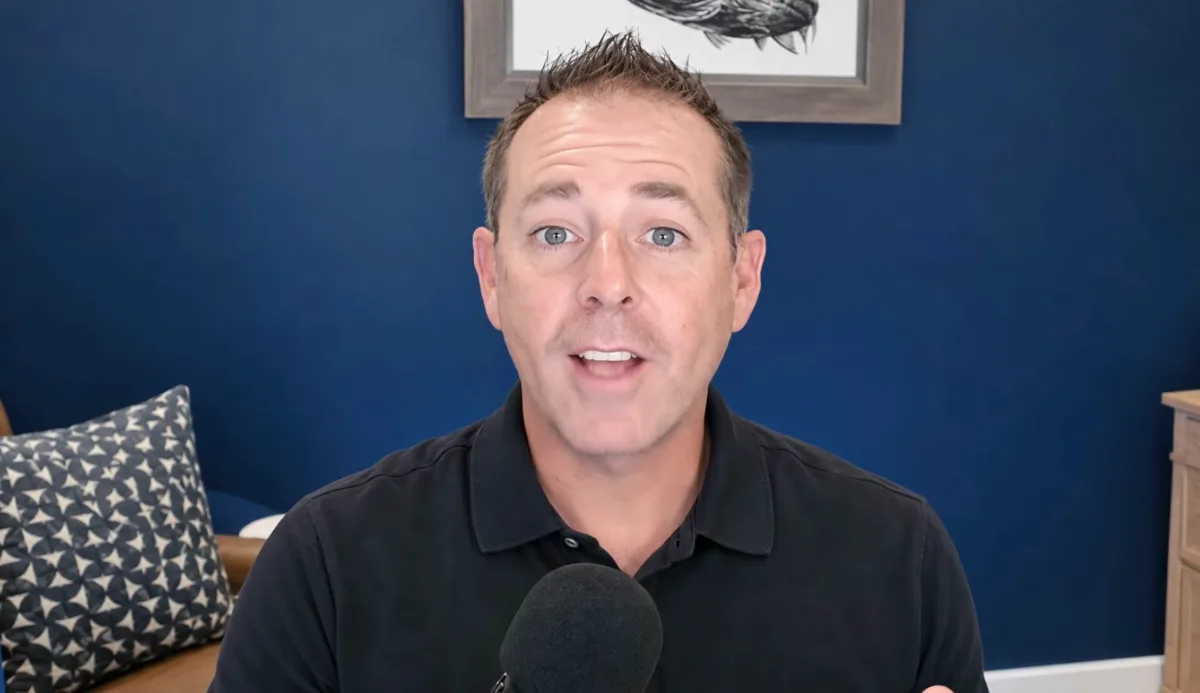 Aaron Cooper
Resident Inspect · Former Property Manager
Custom Report and Branding FAQs
Quick answers about how your reports look, how they reach you, and what your residents see.
We’ll send you a sample report to explore on your own.
Request a Sample ReportCan I put my company’s logo and colors on inspection reports?
Yes. We add your logo to every report, along with your primary and secondary brand colors. Your colors run through the whole report, so it reads like your own material instead of a template with your name on it.
How many report cover templates can I choose from?
There are seven cover templates. The same company’s report takes on a different look just by changing the cover, so you can pick the one that fits your brand best.
Can I change the name of my reports?
Yes. You can call your reports anything you want, such as a condition report or a property assessment, so they match the language your team and owners already use.
Is custom branding included, or is it an add-on?
Custom branding is an optional add-on. If you would rather keep things simple, you can use our standard Resident Inspect branding instead. See our pricing page or book a demo to talk through which setup fits your company.
What do residents see when they join the video inspection?
With custom branding, residents see your company’s logo and colors on the join call and end call screens. There is no app to download and no login to remember. One click connects them with our team.
How do I receive completed reports?
Completed reports are emailed to one or more addresses on your team. The View Inspection Report button in the email opens the report with one click, so there is no portal to log into.
What are yellow and red flags?
Flags call out important findings. A yellow flag email alerts your team to an issue that needs review and includes a short description. A red flag email puts red flags in the subject line so your team knows something needs attention right away.
How do I find a specific room or photo in a report?
The table of contents is color-coded to show which rooms have areas of concern, and every room and item is clickable. Click any image to open the photo library, where you can view photos in full resolution, browse them by room, and download the originals.
Can I share or download a report?
Yes. From the top of any report you can copy a link to share it, download a PDF version, or print it.
Can I see a sample report before signing up?
Yes. Email hello@residentinspect.com and we’ll send you a sample report to explore for yourself, or book a free demo to walk through one with our team.
Let’s Set Your Reports Up
Book a demo and we will walk you through the cover templates and branding options, then help you pick what fits your company.
Have a question first? Contact our team